
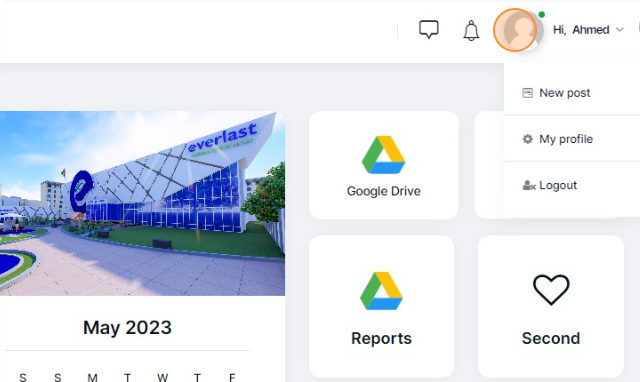
2- Click the “Profile” image.
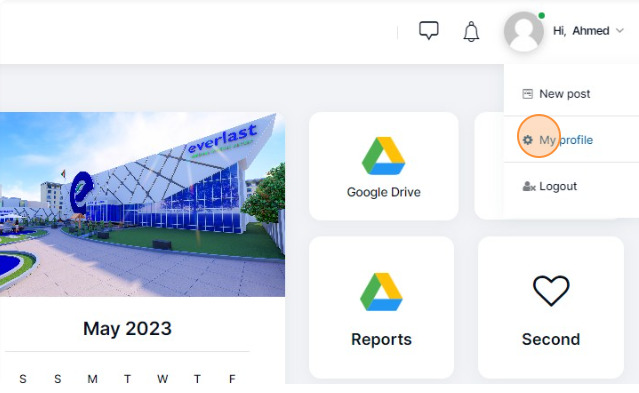
3- Click “My profile” from the menu
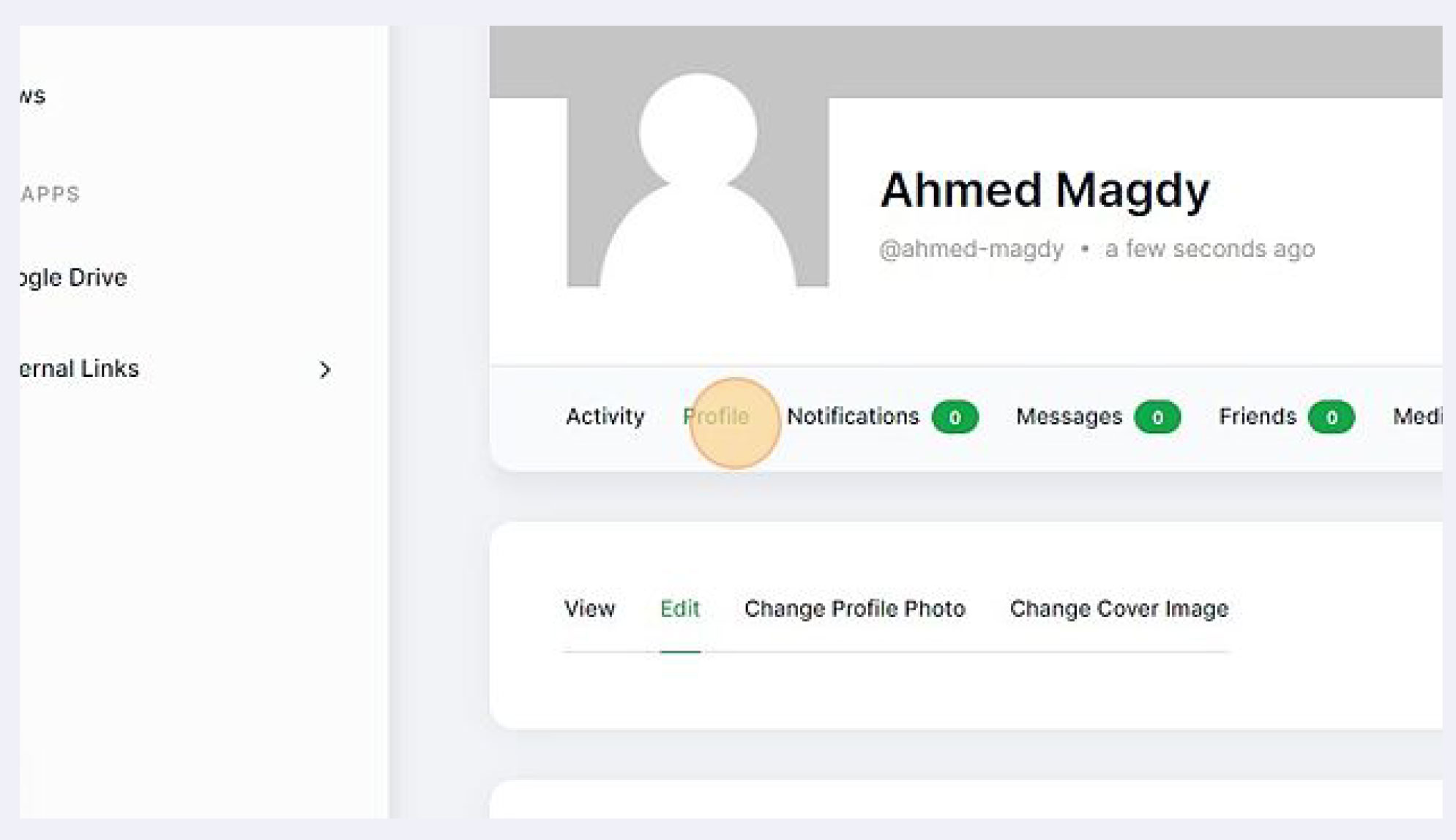
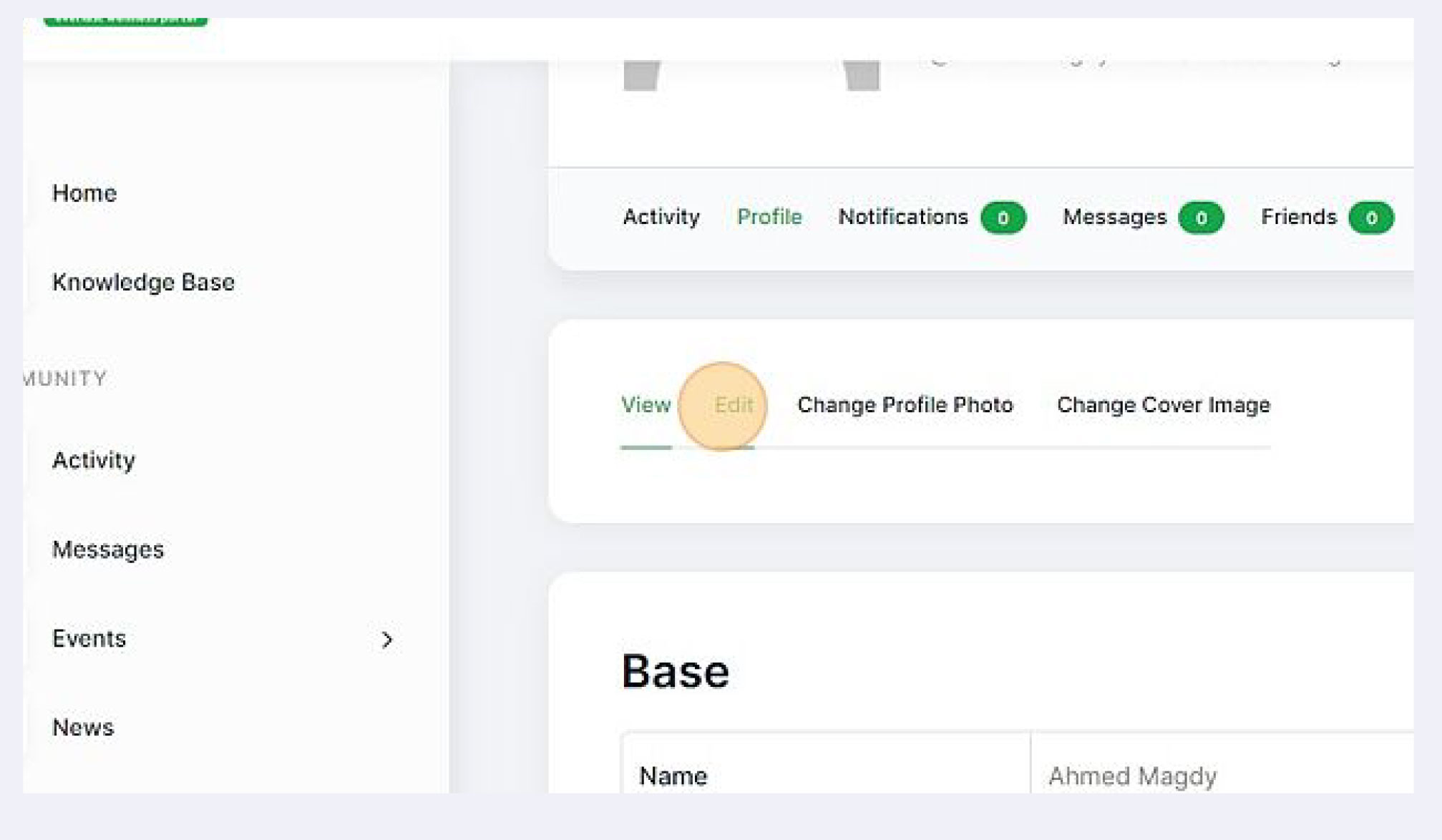
4- Click “Profile” Tap and click “View”
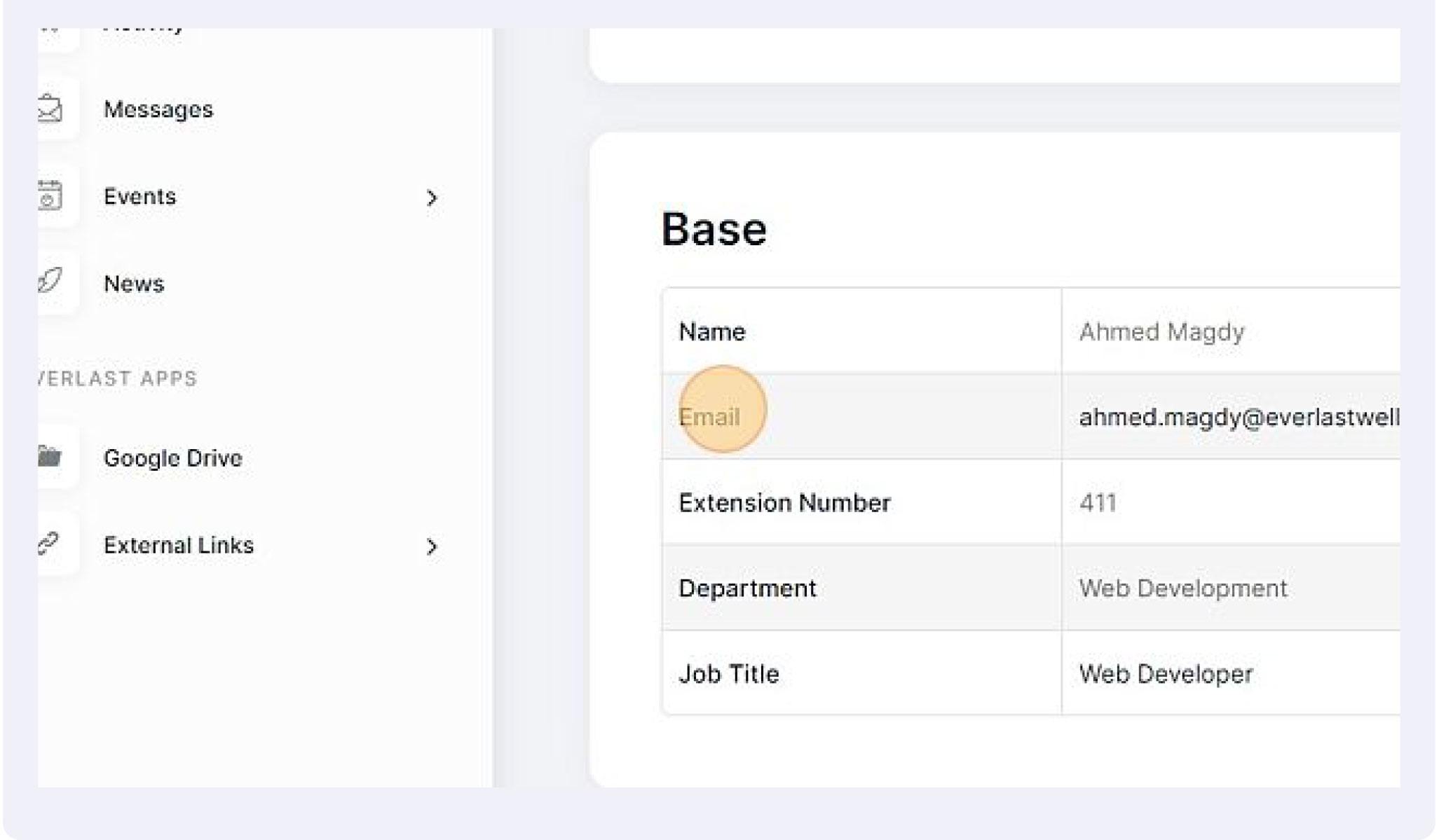
5- check your information
6- Click “Edit” to edit your information
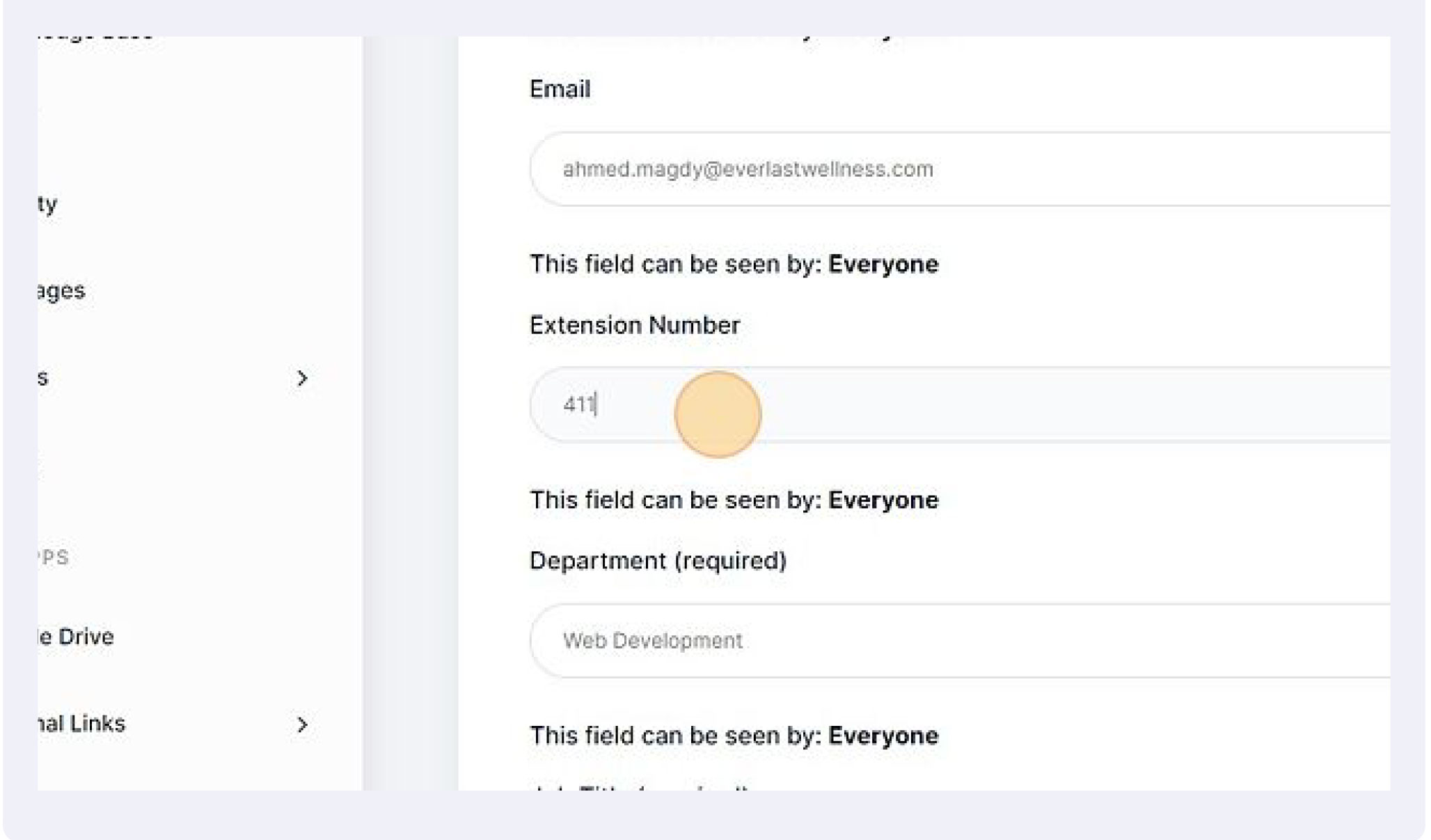
7- Click this text field to update or edit the information.
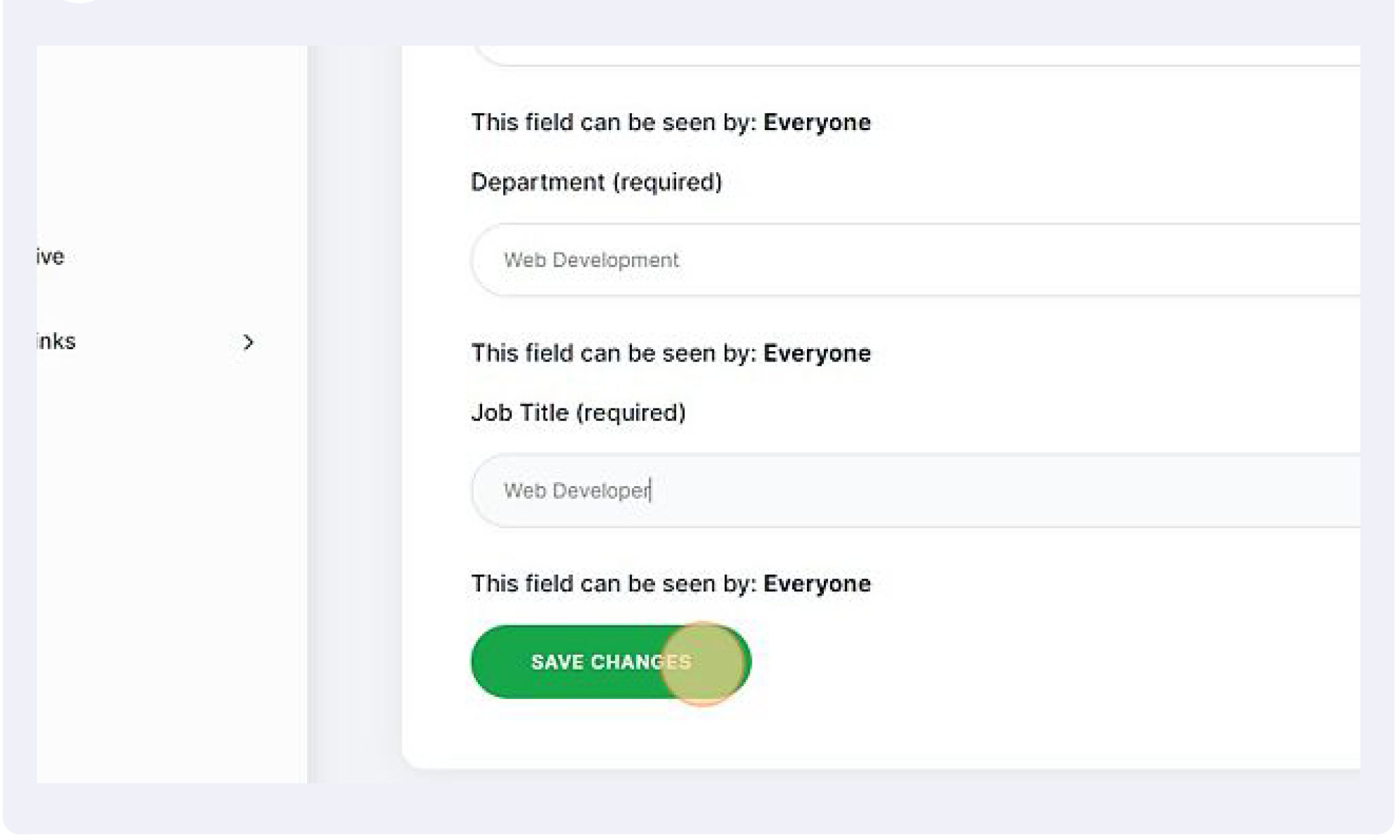
8- Click “SAVE CHANGES”.
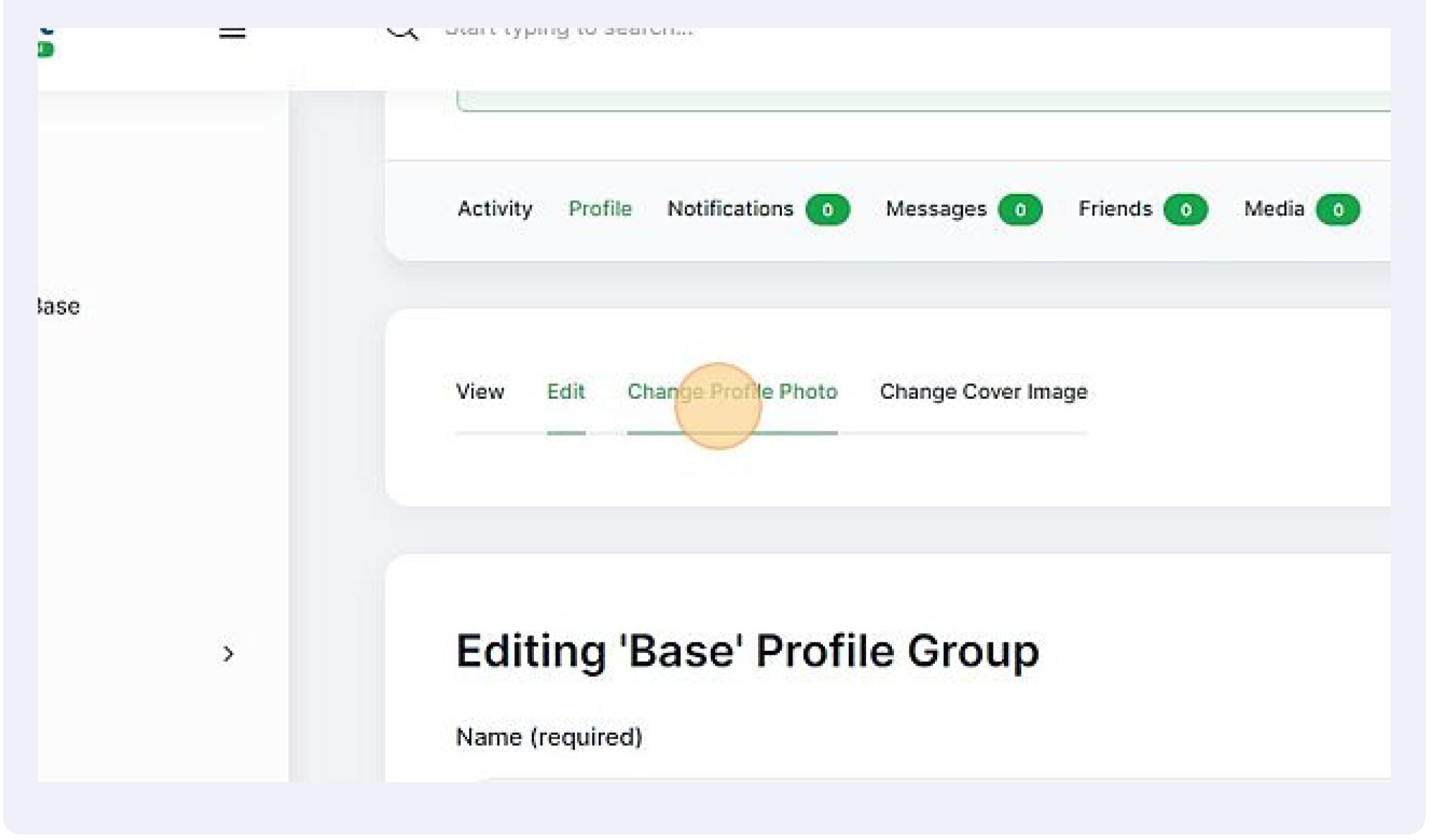
9- Click “Change Profile Photo” to change profile photo
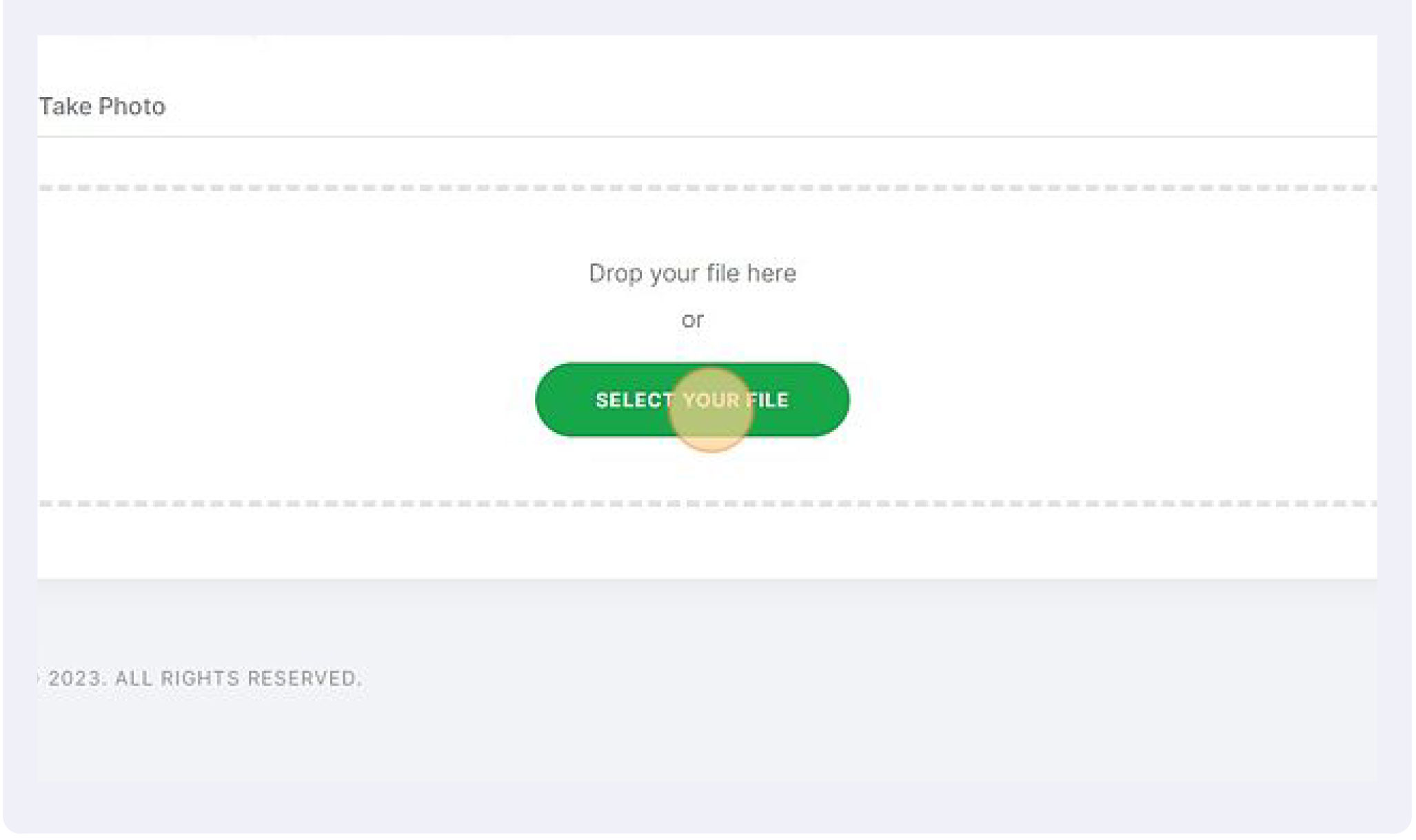
10- Click the “Select your File” field and choose image.
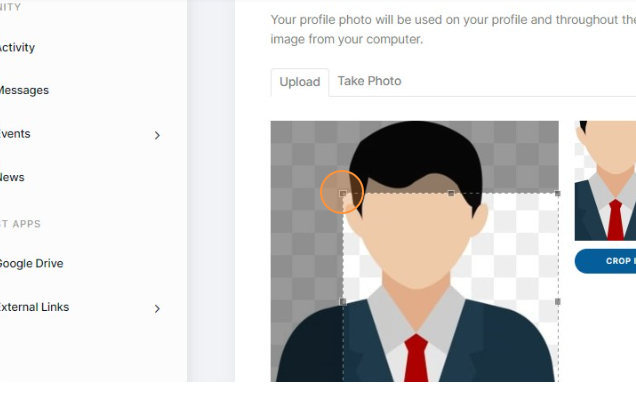
11- crop the image to fit your needs
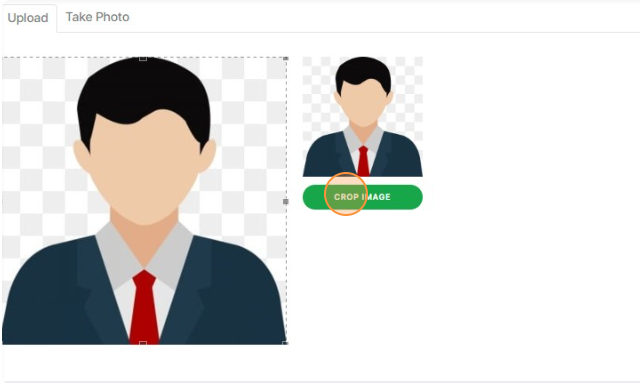
12- Click “CROP IMAGE”
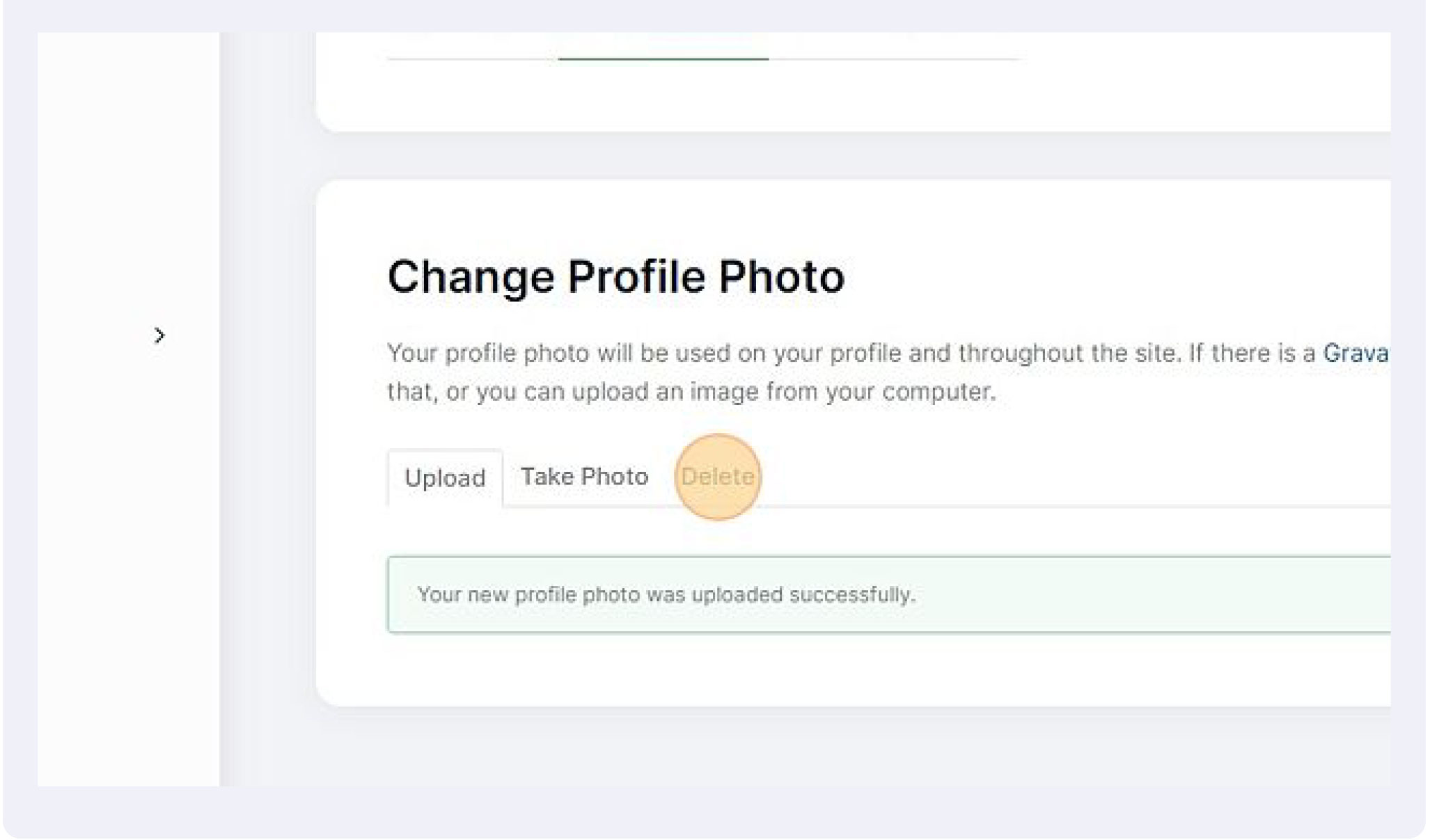
13- Click “Delete” if you want to change image
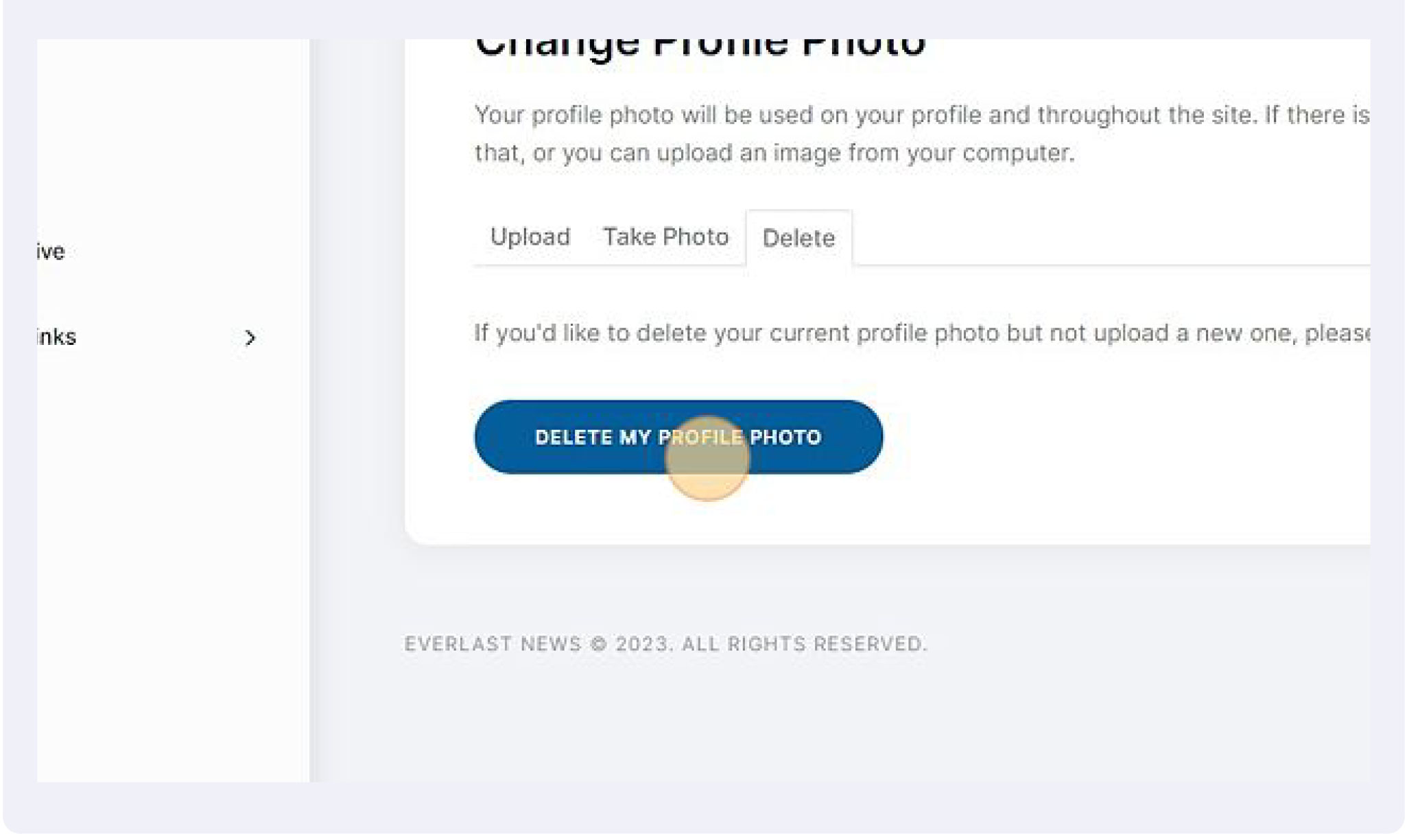
14- Click “DELETE MY PROFILE PHOTO”
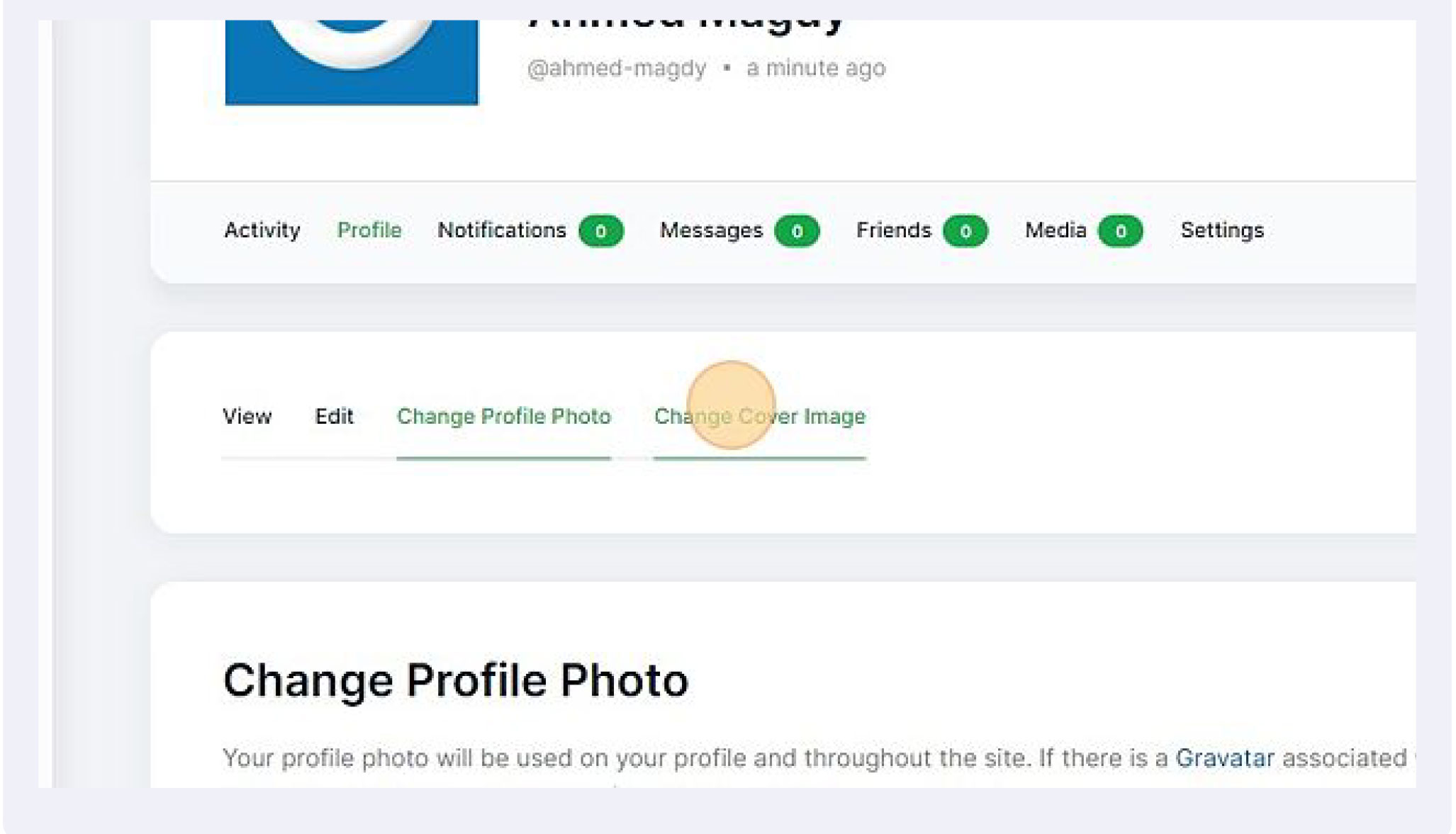
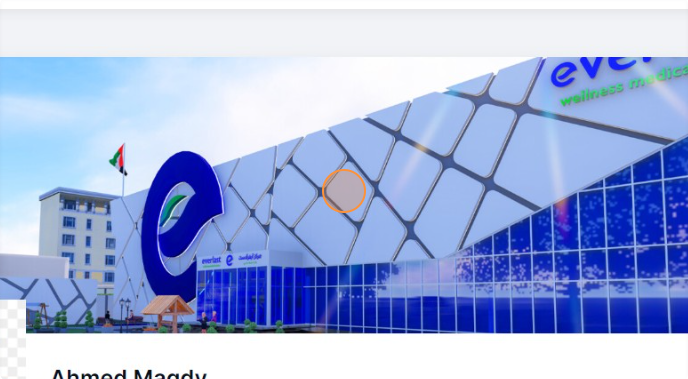
15- Click “Change Cover Image”
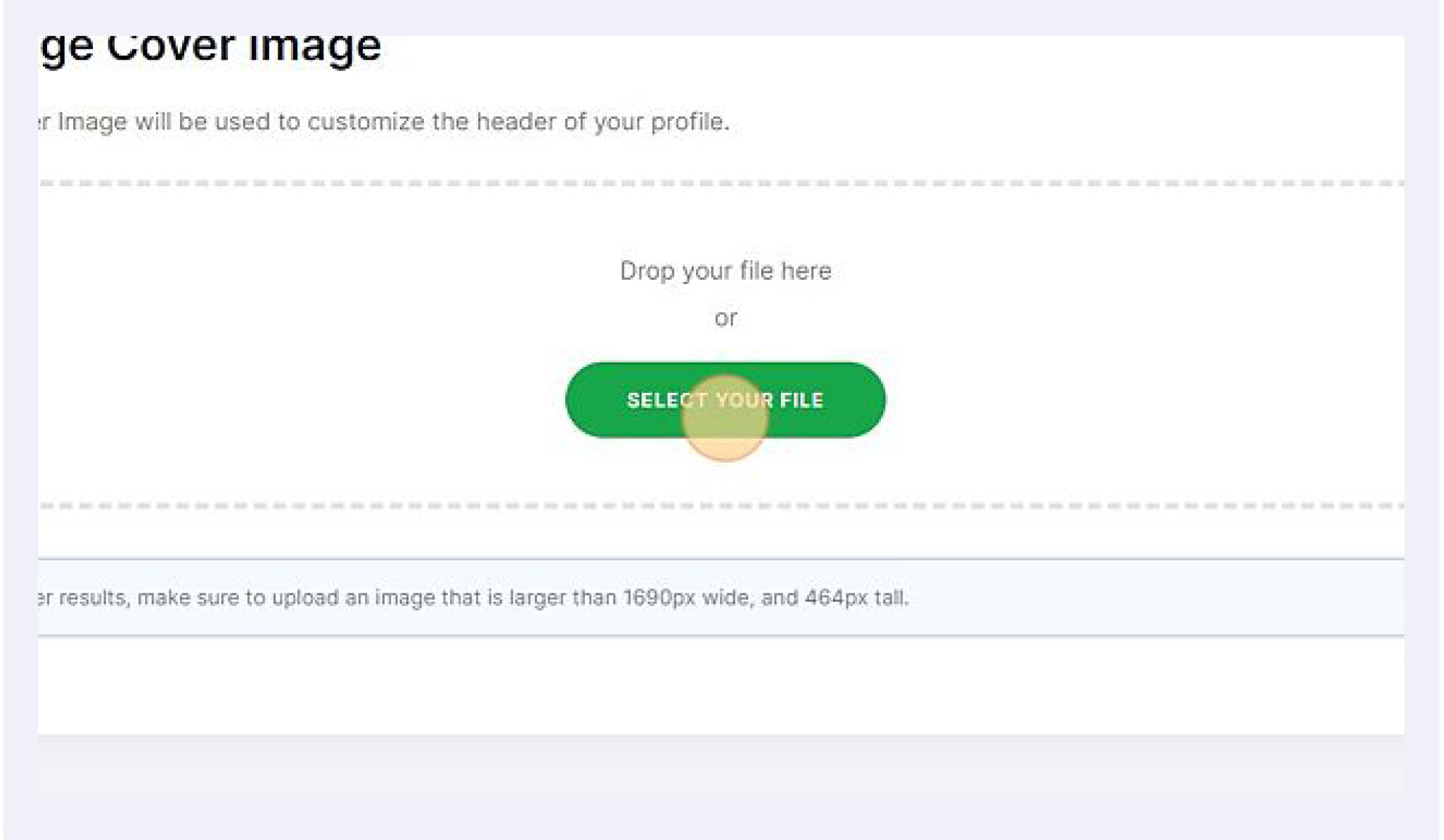
16- Click the “Select your File” field and choose image.
17- crop the image to fit your needs
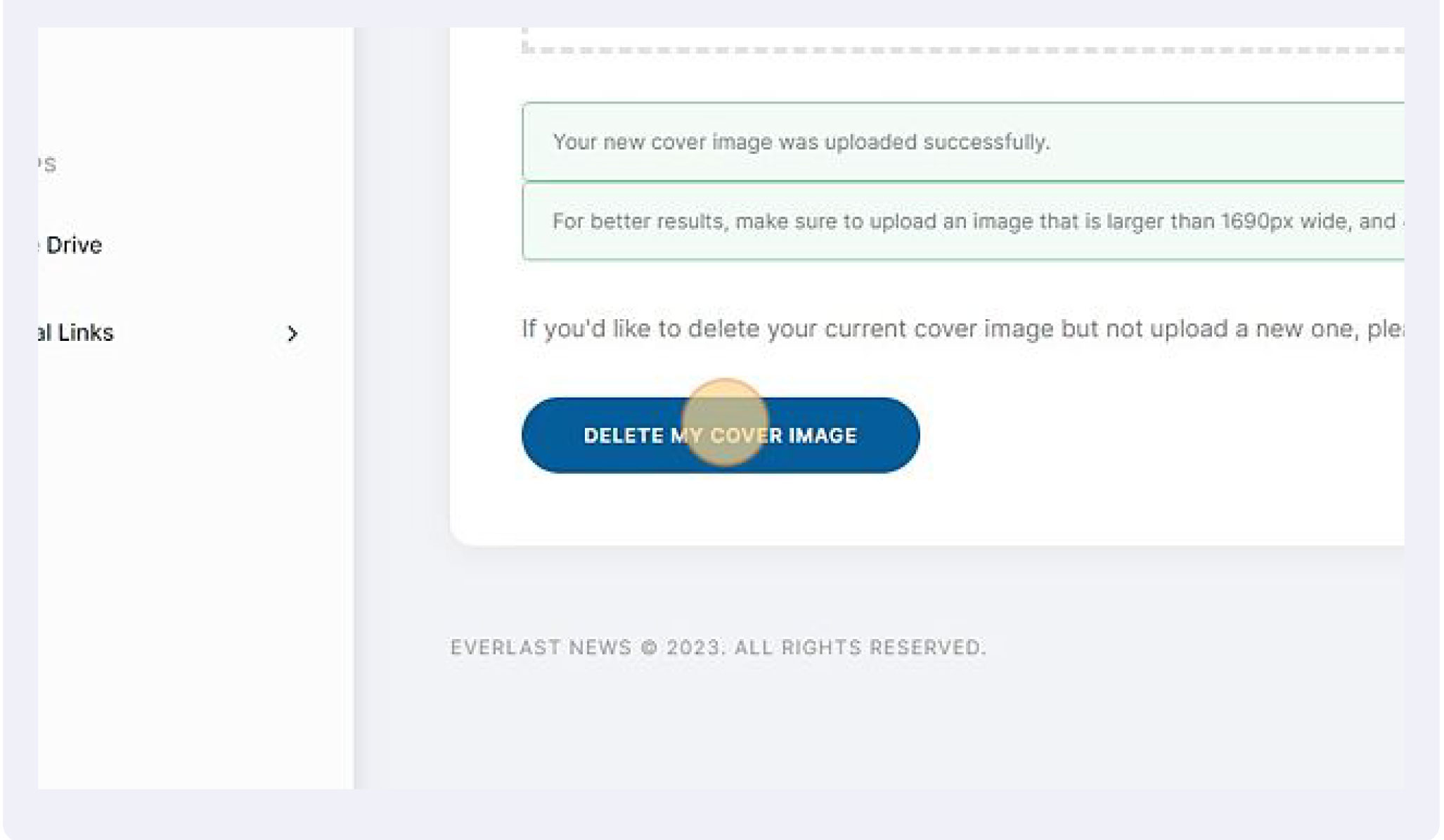
18- Click “DELETE MY COVER IMAGE” if you want to change image
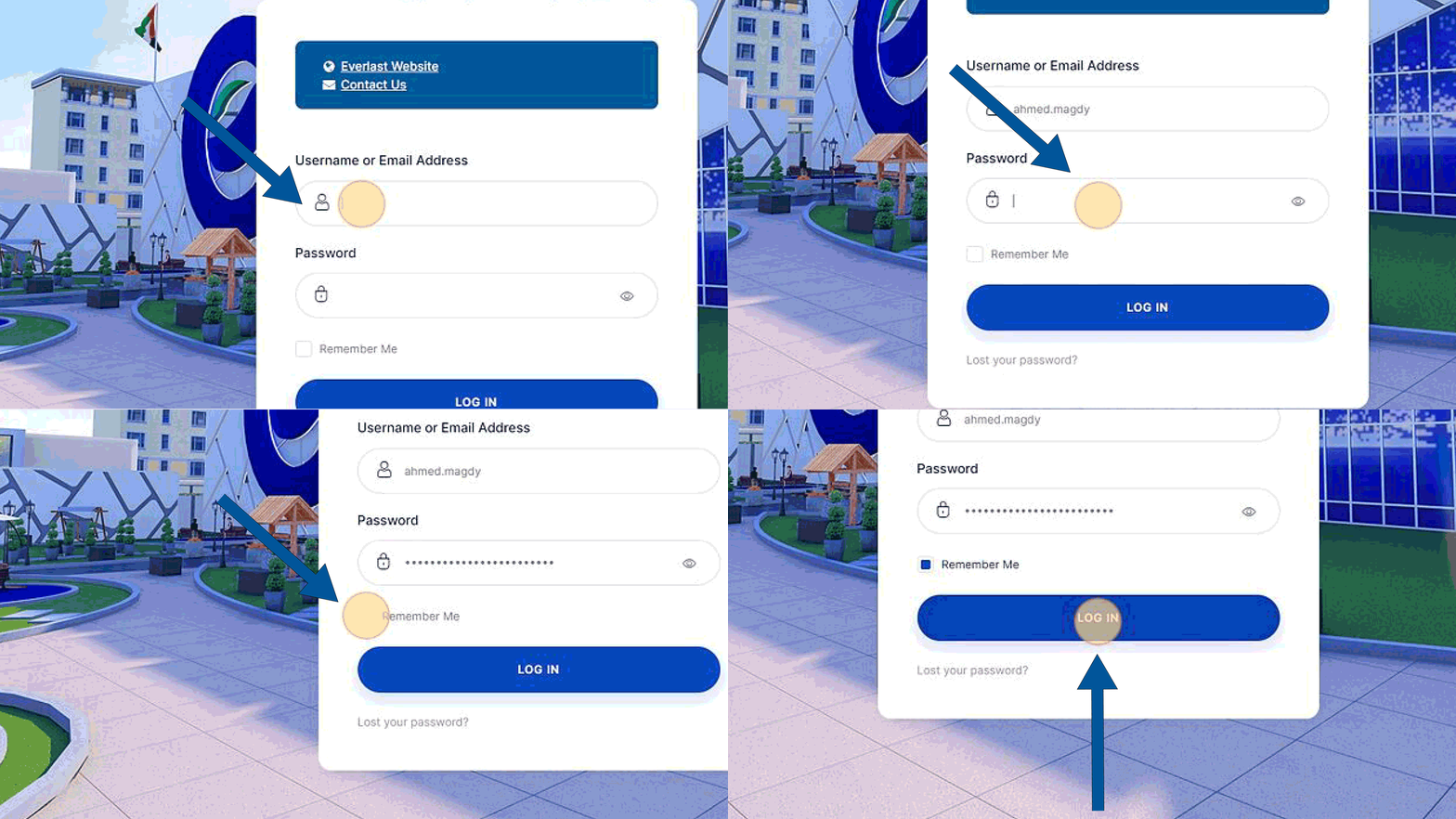
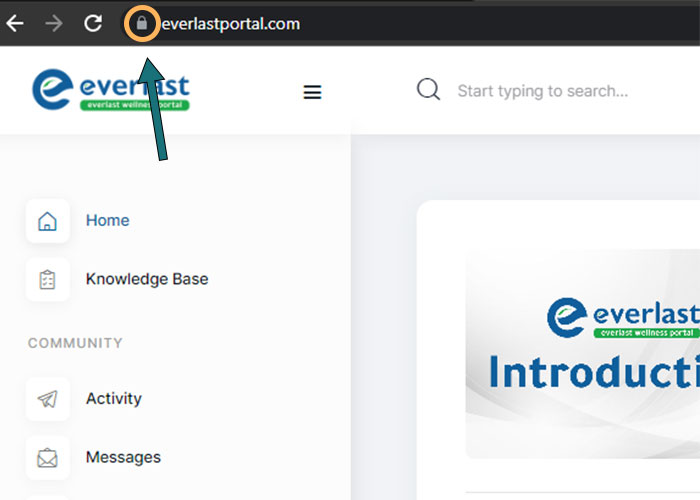
1- Navigate to https://everlastportal.com/
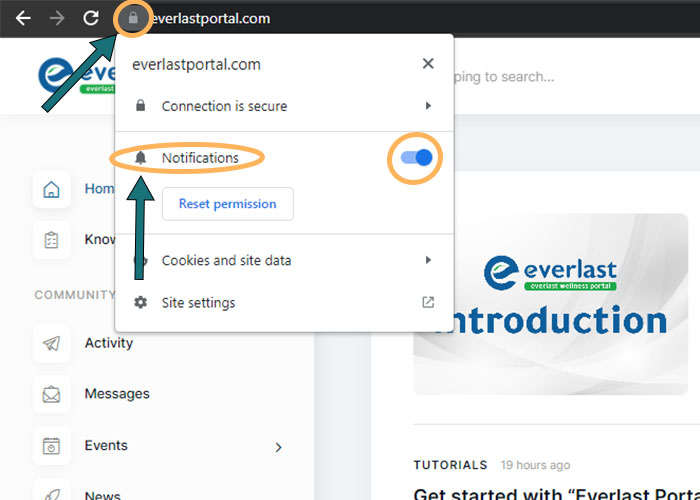
2- Click on the lock icon.
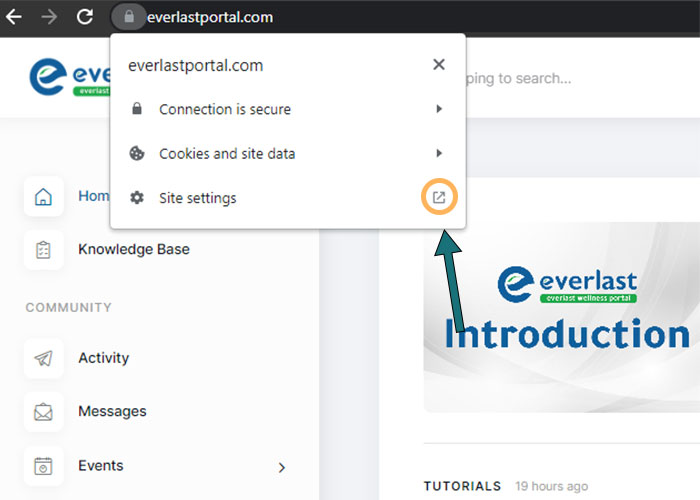
3- Click on site settings and it will take you to a new tap.
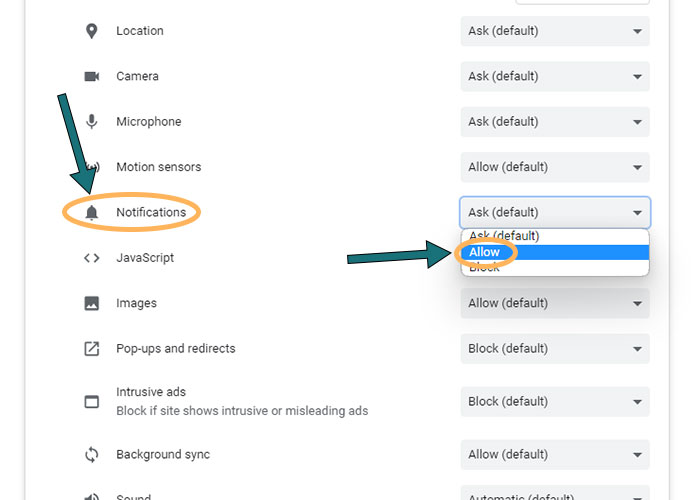
4- Click the dropdown menu for notifications and choose Allow.
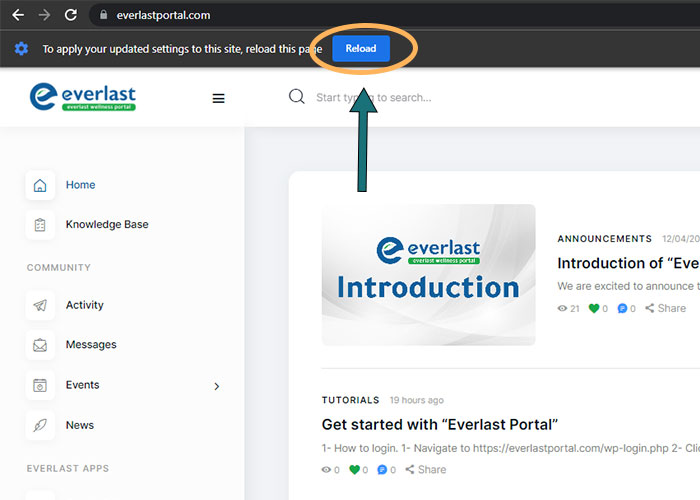
5- Return to the portal and the browser will ask you to reload the page.
7- Click on the lock icon to check that notifications are active.