
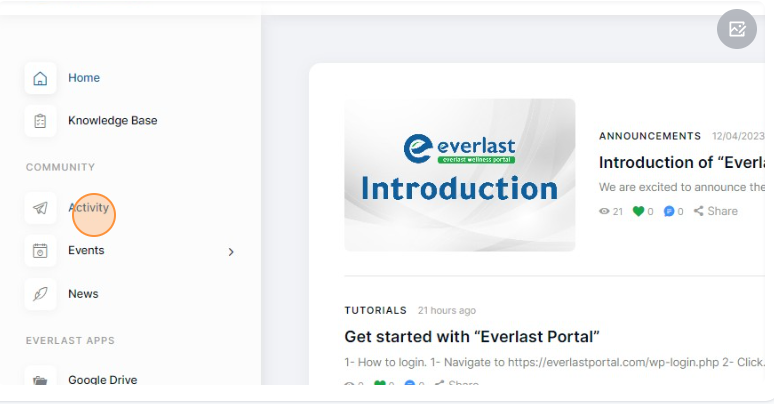
1- Navigate to https://everlastportal.com/
2- Click “Activity”
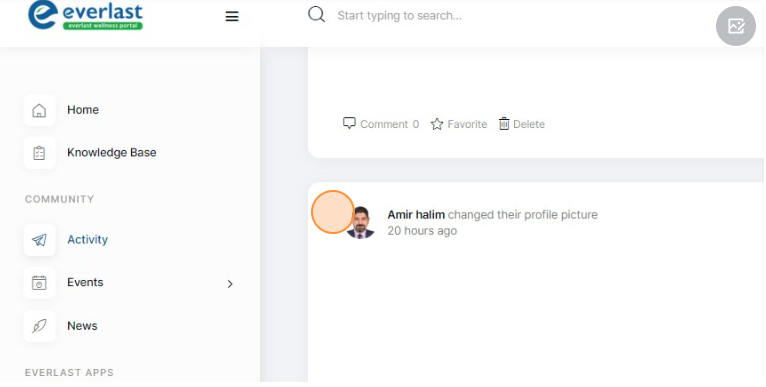
3- you will be able to see all user’s activities and posts.
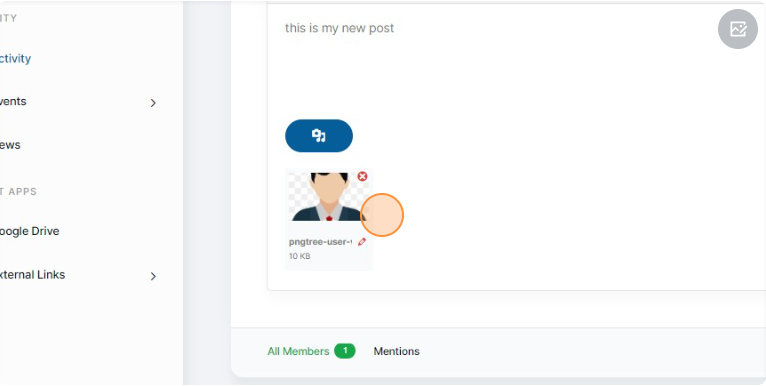
4- on the top you will be able to create new post add media and share with other employees.
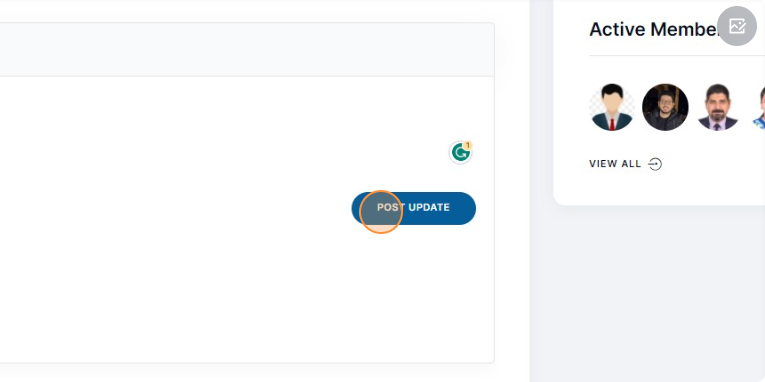
5- Click “POST UPDATE” to share your post with otheres.
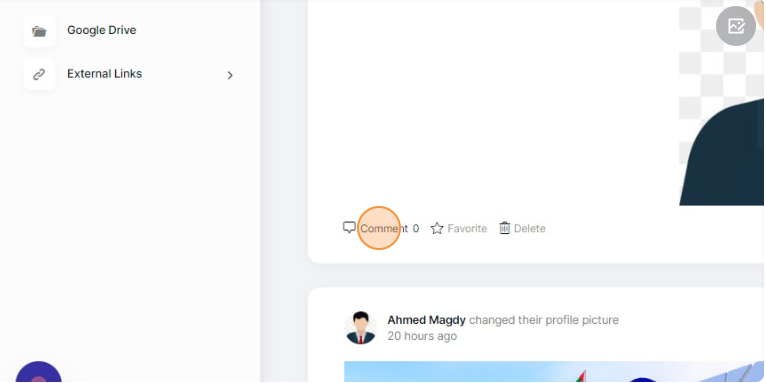
6- Click “Comment” to add comment and share media in comments
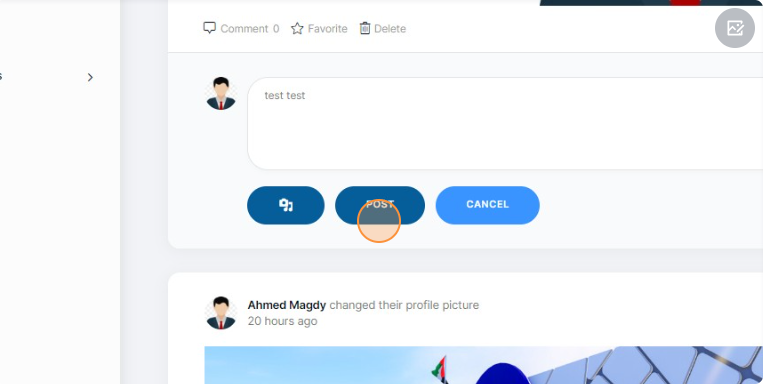
7-Click “POST” to share your comment.
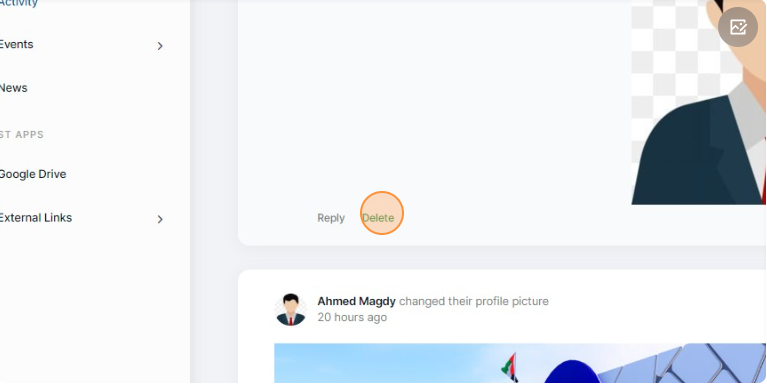
8-Click “Delete” to delet your comment or post.
1- Navigate to https://everlastportal.com/
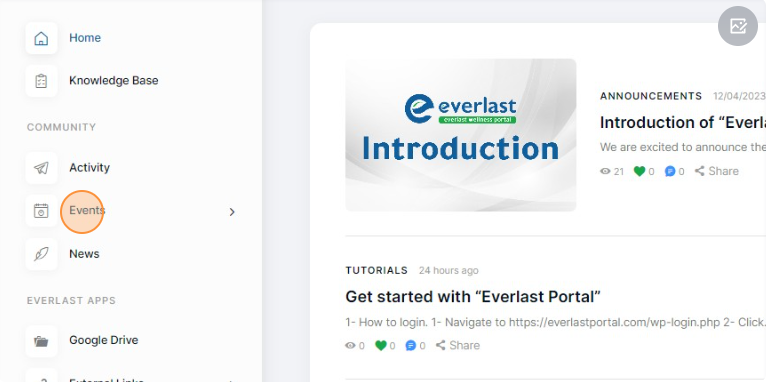
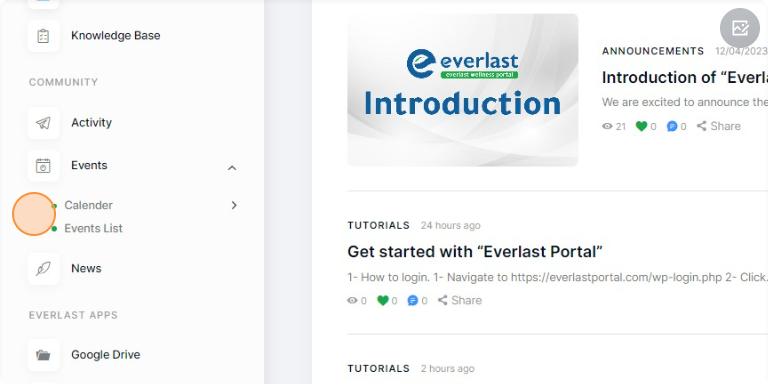
2- Click “Events”
3- Click “Calender / Events List” to check new events that we will have in the future
1- Navigate to https://everlastportal.com/
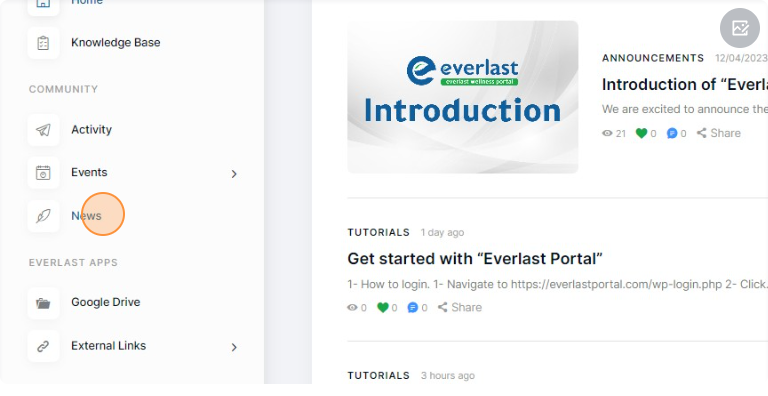
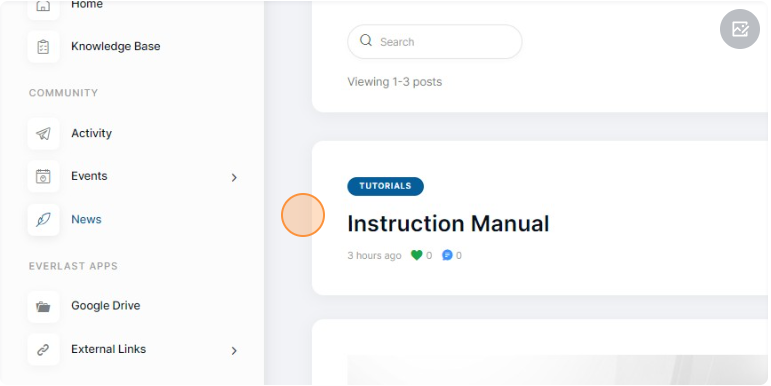
2- Click “News”
3- Now page will show and this page including new news and updates.
1- Navigate to https://everlastportal.com/
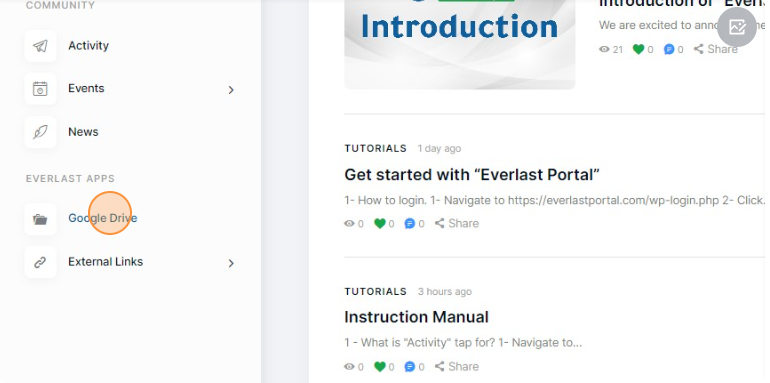
2- Click “Google Drive”
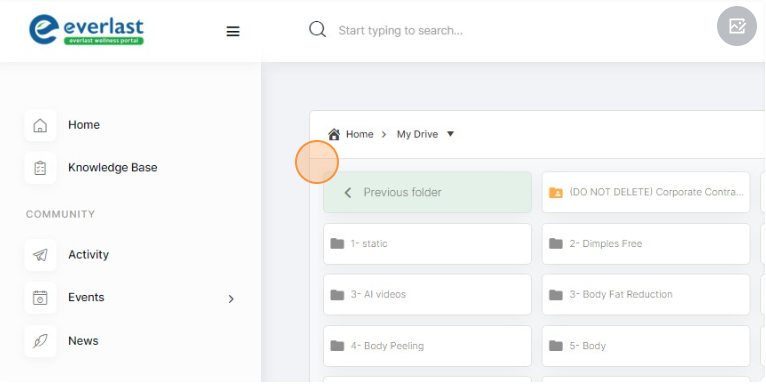
3- You will see everything in your drive and shared with you.
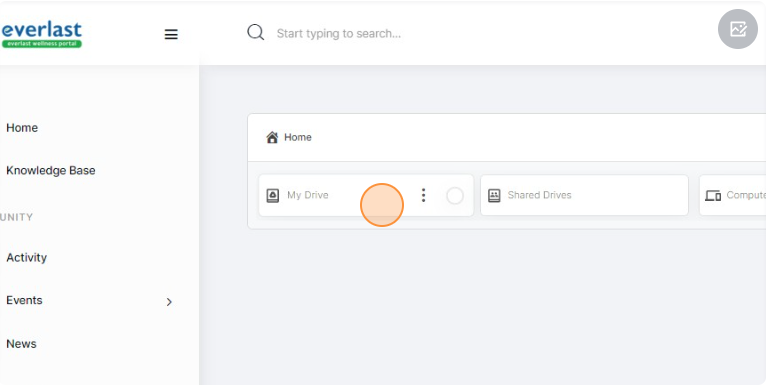
4- After you click on “My Drive” you will see all content.
1- Navigate to https://everlastportal.com/
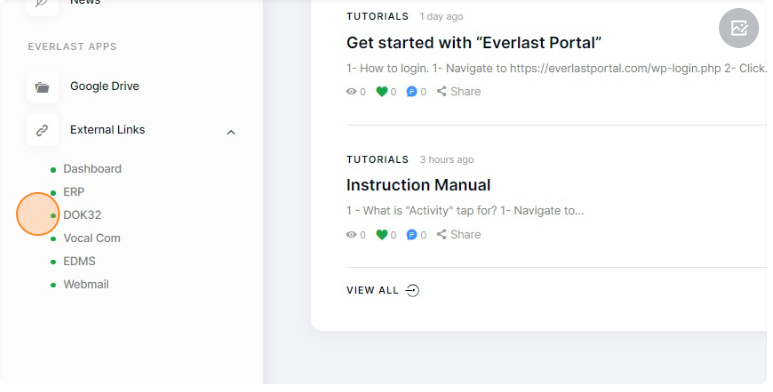
2- Click “External Links”
3- You will see all needed links to your work..